Installation Guide for Next.js 16
Installation
@doc-version: 16.1.6 @last-updated: 2026-02-11
Create a new Next.js app and run it locally.
Quick start
- Create a new Next.js app named
my-app cd my-appand start the dev server.- Visit
http://localhost:3000.
pnpm create next-app@latest my-app --yes
cd my-app
pnpm devnpx create-next-app@latest my-app --yes
cd my-app
npm run devyarn create next-app@latest my-app --yes
cd my-app
yarn devbun create next-app@latest my-app --yes
cd my-app
bun dev--yesskips prompts using saved preferences or defaults. The default setup enables TypeScript, Tailwind, ESLint, App Router, and Turbopack, with import alias@/*.
System requirements
Before you begin, make sure your development environment meets the following requirements:
- Minimum Node.js version: 20.9
- Operating systems: macOS, Windows (including WSL), and Linux.
Supported browsers
Next.js supports modern browsers with zero configuration.
- Chrome 111+
- Edge 111+
- Firefox 111+
- Safari 16.4+
Learn more about browser support, including how to configure polyfills and target specific browsers.
Create with the CLI
The quickest way to create a new Next.js app is using create-next-app, which sets up everything automatically for you. To create a project, run:
npx create-next-app@latestOn installation, you'll see the following prompts:
What is your project named? my-app
Would you like to use the recommended Next.js defaults?
    Yes, use recommended defaults - TypeScript, ESLint, Tailwind CSS, App Router, Turbopack
    No, reuse previous settings
    No, customize settings - Choose your own preferences
If you choose to customize settings, you'll see the following prompts:
Would you like to use TypeScript? No / Yes
Which linter would you like to use? ESLint / Biome / None
Would you like to use React Compiler? No / Yes
Would you like to use Tailwind CSS? No / Yes
Would you like your code inside a `src/` directory? No / Yes
Would you like to use App Router? (recommended) No / Yes
Would you like to customize the import alias (`@/*` by default)? No / Yes
What import alias would you like configured? @/*
After the prompts, create-next-app will create a folder with your project name and install the required dependencies.
Manual installation
To manually create a new Next.js app, install the required packages:
pnpm i next@latest react@latest react-dom@latestnpm i next@latest react@latest react-dom@latestyarn add next@latest react@latest react-dom@latestbun add next@latest react@latest react-dom@latestGood to know: The App Router uses React canary releases built-in, which include all the stable React 19 changes, as well as newer features being validated in frameworks. The Pages Router uses the React version you install in
package.json.
Then, add the following scripts to your package.json file:
{
  "scripts": {
    "dev": "next dev",
    "build": "next build",
    "start": "next start",
    "lint": "eslint",
    "lint:fix": "eslint --fix"
  }
}
These scripts refer to the different stages of developing an application:
next dev: Starts the development server using Turbopack (default bundler).next build: Builds the application for production.next start: Starts the production server.eslint: Runs ESLint.
Turbopack is now the default bundler. To use Webpack run next dev --webpack or next build --webpack. See the Turbopack docs for configuration details.
Create the app directory
Next.js uses file-system routing, which means the routes in your application are determined by how you structure your files.
Create an app folder. Then, inside app, create a layout.tsx file. This file is the root layout. It's required and must contain the <html> and <body> tags.
export default function RootLayout({
  children,
}: {
  children: React.ReactNode
}) {
  return (
    <html lang="en">
      <body>{children}</body>
    </html>
  )
}
Create a home page app/page.tsx with some initial content:
export default function Page() {
  return <h1>Hello, Next.js!</h1>
}
Both layout.tsx and page.tsx will be rendered when the user visits the root of your application (/).

Good to know:
- If you forget to create the root layout, Next.js will automatically create this file when running the development server with
next dev.- You can optionally use a
srcfolder in the root of your project to separate your application's code from configuration files.
Create the public folder (optional)
Create a public folder at the root of your project to store static assets such as images, fonts, etc. Files inside public can then be referenced by your code starting from the base URL (/).
import Image from 'next/image'

export default function Page() {
  return <Image src="/profile.png" alt="Profile" width={100} height={100} />
}
Run the development server
- Run
npm run devto start the development server. - Visit
http://localhost:3000to view your application. - Edit the
app/page.tsxfile and save it to see the updated result in your browser.
Set up TypeScript
Minimum TypeScript version:
v5.1.0
Next.js comes with built-in TypeScript support. To add TypeScript to your project, rename a file to .ts / .tsx and run next dev. Next.js will automatically install the necessary dependencies and add a tsconfig.json file with the recommended config options.
IDE Plugin
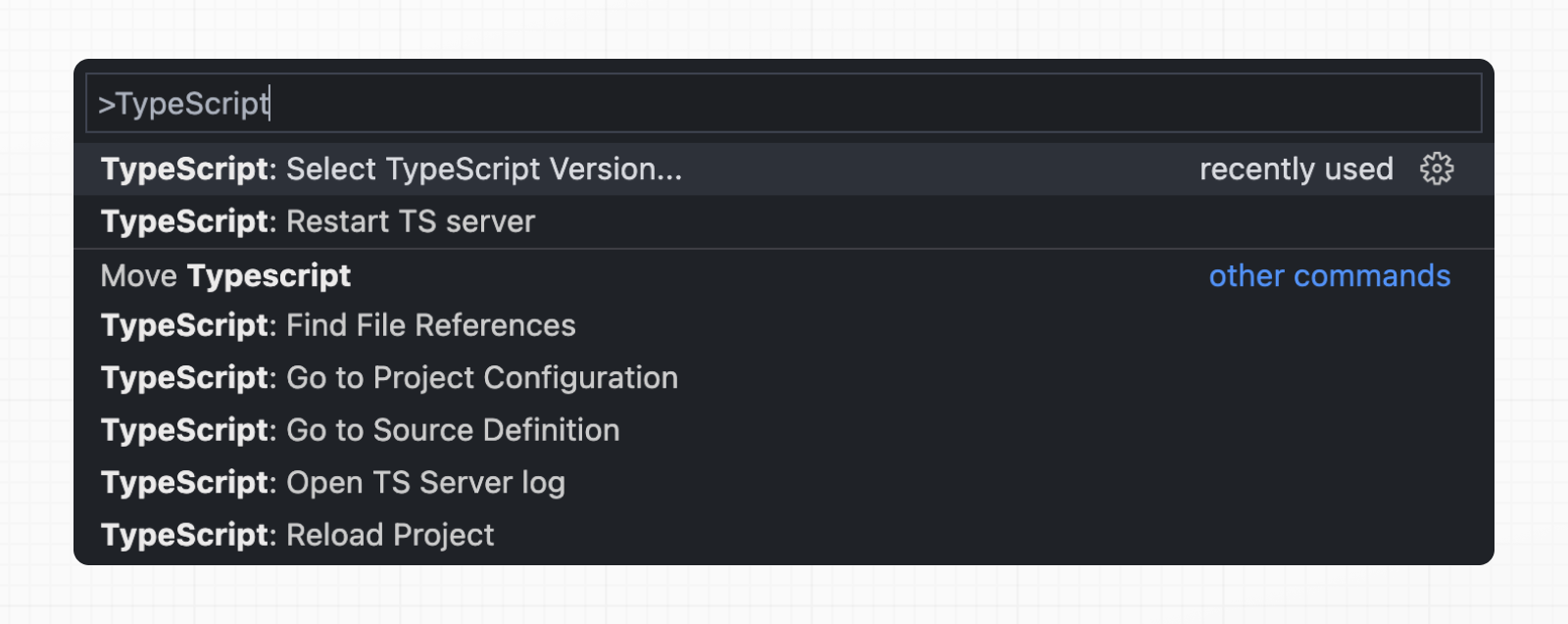
Next.js includes a custom TypeScript plugin and type checker, which VSCode and other code editors can use for advanced type-checking and auto-completion.
Set up linting
Next.js supports linting with either ESLint or Biome. Choose a linter and run it directly via package.json scripts.
Set up Absolute Imports and Module Path Aliases
Next.js has in-built support for the "paths" and "baseUrl" options of tsconfig.json and jsconfig.json files.
{
  "compilerOptions": {
    "baseUrl": "src/",
    "paths": {
      "@/styles/*": ["styles/*"],
      "@/components/*": ["components/*"]
    }
  }
}